The Vision TS

Author name: thevisionts@2-2-26

Blog

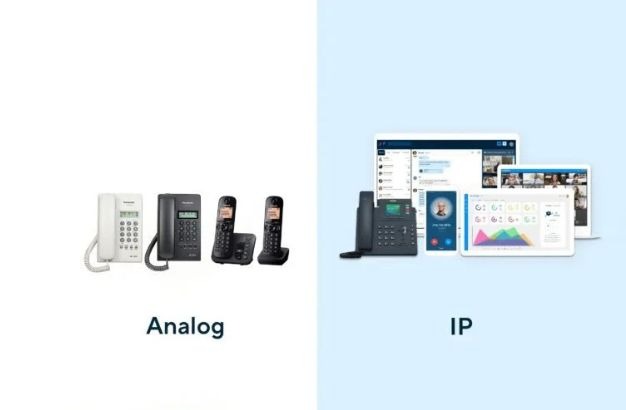
IP Telephony vs. Analog: What’s Best for Your Business?

IP Telephony vs. Analog: What’s Best for Your Business? Home – IP Telephony vs. Analog: What’s Best for Your Business? 1. Technology and Connectivity Analog Phones: Operate through traditional telephone lines (PSTN), relying on physical wiring. IP Telephony: Uses internet-based protocols (VoIP) for communication, allowing calls over the internet, leading to more flexibility. 2. Audio Quality Analog Phones: May experience static or noise due to wiring or distance. IP Telephony: Provides HD voice quality, ensuring clearer and uninterrupted conversations. 3. Scalability and Flexibility   Analog Phones: Limited by physical wiring and infrastructure, which makes it harder to expand. IP Telephony: Easily scalable. Add new lines or features without major hardware changes. 4. Features and Functionality Analog Phones: Basic functionality such as dialing and receiving calls. IP Telephony: Offers advanced features like call forwarding, voicemail to email, video calls, and integrations with other business software. 5. Cost Efficiency Analog Phones: Typically incur high local and international calling costs. IP Telephony: Lower cost per call, especially for long-distance and international communication, with no need for dedicated phone lines. 6. Maintenance and Support Analog Phones: Require dedicated telephone technicians for maintenance and repairs. IP Telephony: Easier to manage and troubleshoot with remote monitoring and support from IT service providers like Vision TS. At Vision TS, we specialize in helping businesses transition smoothly from analog systems to advanced IP telephony solutions. Upgrade your communication with enhanced features and better quality. Plus, with free site surveys and competitive pricing, we ensure you get the best value for your investment. Call Vision TS today for a customized IP telephony solution and experience seamless, cost-effective communication for your business.
Blog

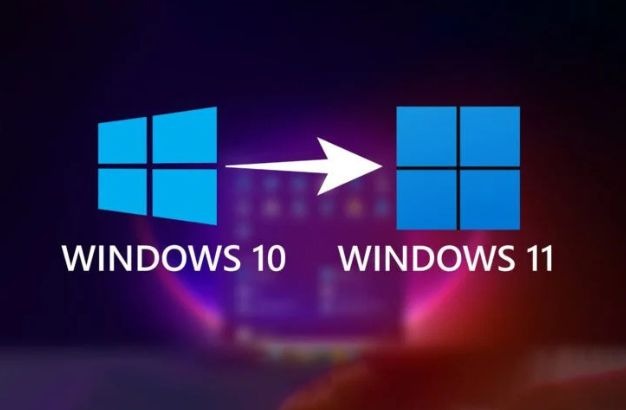
Is Your PC Ready for Windows 11? Bring it to Vision TS for a Free Check.

Is Your PC Ready for Windows 11? Bring it to Vision TS for a Free Check. Home – Is Your PC Ready for Windows 11? Bring it to Vision TS for a Free Check. 1. Windows 11 Compatibility Windows 11 has specific hardware requirements, including TPM 2.0, Secure Boot, and certain CPU models. Not all PCs or laptops meet these requirements. 2. Free PC or Laptop Check Vision TS offers a free system evaluation to check if your device is eligible for the Windows 11 upgrade. 3. No Obligation Advice We provide expert advice on your system’s current hardware, letting you know what needs to be upgraded, if anything, at no cost to you. 4. Upgrade Options If your system isn’t compatible, Vision TS offers affordable upgrade services to ensure your PC or laptop meets the Windows 11 requirements. 5. Enhance Performance   Upgrading to Windows 11 can improve performance, security, and functionality. We can recommend the best upgrades, from RAM to SSDs. 6. Free or Low-Cost Solutions Sometimes a minor upgrade like adding more memory or enabling TPM in the BIOS is enough. Vision TS will suggest the most cost-effective solution for your needs. 7. Complete Upgrade Service   At Vision TS, we provide a complete hardware and software upgrade service. Whether it’s a new operating system or hardware components, we’ll ensure your system is ready for Windows 11. Why Choose Vision TS for Your Windows 11 Upgrade? At Vision TS, we are committed to providing top-notch IT services and support. Whether it’s a free Windows 11 compatibility check, advice on system upgrades, or a complete hardware overhaul, we ensure your PC or laptop is running at its best. Visit our Dubai location or contact us to take advantage of our expert services and competitive pricing.

Blog

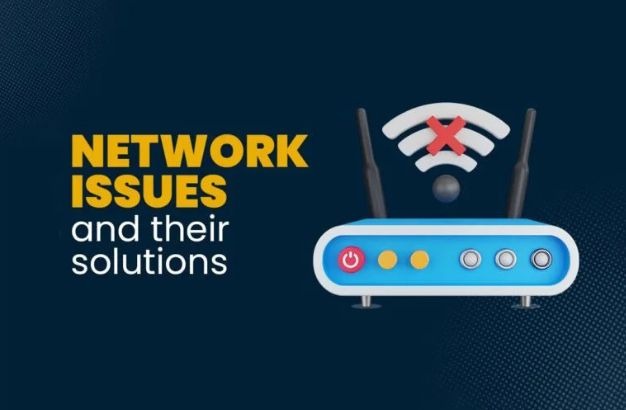
Solve Your Internet Issues in Dubai with Vision TS: Fast and Reliable Solutions

Solve Your Internet Issues in Dubai with Vision TS: Fast and Reliable Solutions Home – Solve Your Internet Issues in Dubai with Vision TS: Fast and Reliable Solutions Facing internet problems in Dubai can be frustrating, but the issue isn’t always with Du or Etisalat. At Vision TS, we specialize in diagnosing and fixing internet problems quickly and efficiently, whether at home or in the office. Here are five common causes of internet issues and how we can help. 1. Outdated Firmware Many internet issues stem from outdated firmware in switches or access points. Regular updates are crucial to ensure smooth connectivity and better performance. Our team at Vision TS ensures all your networking devices are up-to-date. 2. Old or Damaged Cables Over time, internet cables degrade, leading to poor performance and frequent disconnections. Replacing old cables with high-quality ones can drastically improve your connection. We assess and replace outdated wiring to ensure a seamless experience.   3. Wi-Fi Signal Interference Weak or unstable Wi-Fi signals can cause connectivity issues. We provide Wi-Fi signal enhancement services to improve coverage and minimize interference, ensuring your entire space has reliable access. 4. Network Optimization Sometimes, optimizing your network setup can resolve slow internet speeds and frequent drops. Vision TS offers comprehensive network diagnostics and optimization to boost performance. 5. Customized Solutions with a Free Site Survey   We offer a free site survey to identify the exact cause of your internet problems. From there, we provide cost-effective solutions tailored to your specific needs, ensuring minimal downtime and disruption. Don’t let internet issues slow you down—contact Vision TS today for a fast and affordable solution.

Blog

Why is My Computer’s Internet So Slow? Causes & How Vision TS Can Help!

Why is My Computer’s Internet So Slow? Causes & How Vision TS Can Help! Home – Why is My Computer’s Internet So Slow? Causes & How Vision TS Can Help! Briefly address why slow internet speeds on computers are a common issue and how it impacts productivity and browsing. Introduce Vision TS as a trusted IT service provider in Dubai, capable of resolving internet speed issues both on-site and remotely. 1. Common Causes of Slow Internet Speeds on Your Computer Network Congestion – Multiple devices connected to the same network can slow down the speed. Explain that Vision TS can optimize home or office WiFi networks to manage device loads effectively. Background Programs and Apps – Background applications can consume bandwidth. Mention how Vision TS offers comprehensive diagnostics and optimization services to manage these processes. Outdated Hardware and Software – Old network adapters or outdated drivers can lead to slower speeds. Vision TS can assist with hardware upgrades and software updates. Viruses and Malware – Malware can significantly impact internet speeds. Highlight that Vision TS provides virus and malware removal services as part of its network optimization. Router Issues – Routers may need rebooting, updates, or even replacement. Vision TS offers router installation, setup, and troubleshooting for optimal performance. 2. Solutions Vision TS Offers to Improve Internet Speed On-Site Services – Describe how Vision TS’s experts can diagnose and fix internet issues on-site, perfect for home or business locations that require hands-on assistance. Remote Support – Vision TS can remotely troubleshoot, run diagnostics, and provide step-by-step guidance to resolve internet issues without the need for a technician’s visit. 3. Why Choose Vision TS? Highlight Vision TS’s experience, quick response times, and dedication to providing personalized solutions that address unique customer needs, whether for home users or businesses in Dubai. Visit our Dubai location or contact us to take advantage of our expert services and competitive pricing.

Blog

Software Installation Services in Dubai: From Adobe to 3D Design Software

Software Installation Services in Dubai: From Adobe to 3D Design Software Home – Software Installation Services in Dubai: From Adobe to 3D Design Software In today’s fast-paced digital world, having access to the right software tools is essential for professionals across various industries. From graphic designers and architects to animators and interior designers, specialized software enables creativity, productivity, and efficiency. At Vision TS, a leading IT solutions provider in Dubai, we offer professional software installation services to meet the unique needs of businesses and individuals alike. Whether you require graphic design tools, 3D modeling software, or architectural applications, our team is equipped to install and set up essential software for your projects. With both on-site and remote installation services, we ensure a seamless process tailored to your requirements. 1. Installation of Graphic Design Software At Vision TS, we understand the importance of high-quality, reliable graphic design software for digital artists and creative professionals. Our experts can help you install industry-standard tools, including Adobe Creative Suite (Photoshop, Illustrator, InDesign, etc.), CorelDRAW, and other specialized applications. We ensure the software is properly configured, licensed, and ready for immediate use so you can focus on creating stunning visual content. 2. Interior Design and Architectural Software Setup 3D designers, animators, and game developers rely on powerful applications like Blender, Maya, 3ds Max, and Cinema 4D. Vision TS provides expert installation services for these 3D modeling and animation software tools. We assist in configuring graphics settings and system compatibility, so your software runs efficiently, supporting your creative and technical workflows.   3. Flexible On-Site and Remote Installation Services Understanding that every client has different needs, Vision TS offers both on-site and remote software installation services. Our team can come to your location within Dubai to perform installations directly, or, if preferred, provide remote support to set up and configure your software securely. Whether at your office or remotely, we ensure a smooth, hassle-free installation experience. Visit our Dubai location or contact us to take advantage of our expert services and competitive pricing.

Blog

How to Degrade from Windows 11 to Windows 10 in Dubai with Vision TS

How to Degrade from Windows 11 to Windows 10 in Dubai with Vision TS Home – How to Degrade from Windows 11 to Windows 10 in Dubai with Vision TS 1. Why Downgrade from Windows 11 to 10? Some users find compatibility issues, performance concerns, or simply prefer the user-friendly interface of Windows 10. Vision TS understands these challenges and provides professional downgrade solutions tailored to your needs. 2. Backup Your Data Before Downgrading   A downgrade might result in data loss. Our experts at Vision TS ensure a complete data backup and secure recovery to make the process worry-free. Whether you’re in Downtown Dubai or Business Bay, we’ve got you covered. 3. Uninstall Windows 11 with Professional Guidance Downgrading involves uninstalling Windows 11 and reinstalling Windows 10. Vision TS’s skilled technicians use reliable methods to avoid system errors and downtime. 4. Reinstall and Configure Windows 10 From setting up drivers to configuring your software, Vision TS ensures a seamless transition. Our services include complete system configuration and troubleshooting to meet your specific requirements. 5. Post-Downgrade Support and Maintenance At Vision TS, our services don’t end with the downgrade. We provide ongoing support, software updates, and system optimization to ensure your Windows 10 experience is top-notch. Why Choose Vision TS for Downgrade Services? With our expertise and excellent customer support, we provide hassle-free services across Dubai, including popular locations like Downtown Dubai, Business Bay, JLT, and beyond. Trust Vision TS to keep your systems running smoothly. Visit our Dubai location or contact us to take advantage of our expert services and competitive pricing.

Blog

Boost Your Laptop Speed with These Simple Tricks – A Guide by Vision TS

Boost Your Laptop Speed with These Simple Tricks – A Guide by Vision TS Home – Boost Your Laptop Speed with These Simple Tricks – A Guide by Vision TS Are you frustrated with a slow laptop affecting your productivity? Whether you use your laptop for work, gaming, or personal tasks, a sluggish system can be a major headache. At Vision TS, we provide expert IT services in Dubai, including Business Bay, Downtown, and Dubai Freezone, helping businesses and individuals optimize their devices for peak performance. Here are five simple yet effective tips to boost your laptop’s speed and keep it running smoothly: 1. Remove Unnecessary Programs & Startup Apps Over time, your laptop accumulates programs that consume memory and slow down performance. Go to Task Manager (Ctrl + Shift + Esc) > Startup and disable apps that don’t need to run at startup. This will significantly reduce boot time and free up system resources. 2. Upgrade to an SSD for Faster Performance   If your laptop still runs on an HDD, upgrading to an SSD (Solid-State Drive) can dramatically improve speed. SSDs have faster read/write speeds, reducing lag when opening files or running applications. At Vision TS, we provide laptop upgrade services in Dubai, ensuring your system runs at its best. 3. Keep Your Laptop Free from Viruses and Malware Viruses and malware not only compromise security but also slow down your system. Regularly scan your laptop using trusted antivirus software. If you suspect your system is infected, our team at Vision TS offers expert virus removal services in Business Bay, Downtown, and Dubai Freezone to restore your laptop’s performance.   4. Optimize Your Laptop’s RAM Usage Low RAM can make multitasking difficult. To improve performance: Close unnecessary background apps Increase virtual memory through system settings Upgrade RAM for a smoother experience (recommended for professionals using heavy applications like graphic design, video editing, and software development) If you need a RAM upgrade in Dubai, Vision TS provides top-quality IT services for logistics companies, businesses, and individuals to ensure seamless performance. 5. Regular Software Updates & Maintenance Outdated software can cause system lag and security vulnerabilities. Ensure that your Windows/macOS and all applications are up to date. Also, perform disk cleanup and defragmentation (for HDDs) to keep storage optimized. At Vision TS, we offer comprehensive laptop maintenance in Dubai Freezone, Business Bay, and Downtown to keep your device in top shape. Need Professional IT Support in Dubai? Contact Vision TS! If your laptop is still running slow, Vision TS is here to help! We provide professional IT services in Dubai, including hardware upgrades, software troubleshooting, virus removal, and system optimization for individuals, businesses, and logistics companies.📍 Available in Business Bay, Downtown, Dubai Freezone, and beyond📞 Contact us today for a free consultation! By optimizing your laptop, you’ll experience faster performance, better efficiency, and improved workflow. Let Vision TS take care of your IT needs while you focus on what matters most.

Blog

How to Fix Windows 11 Blue Screen Error (BSOD) – A Complete Guide

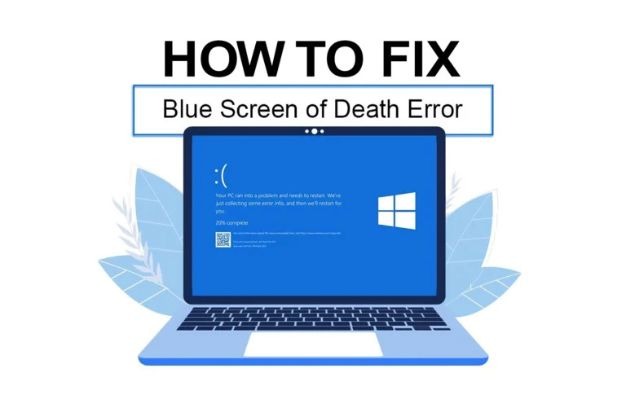
How to Fix Windows 11 Blue Screen Error (BSOD) – A Complete Guide Home – How to Fix Windows 11 Blue Screen Error (BSOD) – A Complete Guide A Blue Screen of Death (BSOD) on Windows 11 can be a frustrating issue, causing unexpected crashes and potential data loss. These errors can result from hardware failures, driver conflicts, software issues, or overheating. If you’re experiencing frequent BSOD crashes, don’t worry—Vision TS, a leading IT services provider in Dubai, is here to help! In this guide, we’ll cover 12 proven methods to troubleshoot and fix Windows 11 blue screen errors. Whether you’re in Business Bay Dubai, JLT Dubai, Downtown Dubai, or Dubai Marina, our IT experts are available to resolve your issues efficiently. 1. Restart Your Computer Sometimes, a simple restart can fix temporary system errors causing the BSOD. Let your PC reboot automatically and check if the issue persists. 2. Check for Windows Updates Outdated system files and drivers often cause blue screen errors. To update Windows: 1. Go to Settings > Windows Update. 2. Click Check for updates and install any available updates. 3. Restart your computer after the update. 3. Identify the Error Code When a BSOD occurs, it displays an error code (e.g., CRITICAL_PROCESS_DIED, IRQL_NOT_LESS_OR_EQUAL). Note the code and search online for specific troubleshooting steps. 4. Uninstall Recent Software or Drivers If the BSOD started after installing new software or drivers, you can remove them: 1. Boot into Safe Mode (Press F8 or Shift + F8 during startup).2. Uninstall recent software from Settings > Apps > Installed Apps.3. Remove problematic drivers via Device Manager. 5. Run System File Checker (SFC) to Repair Corrupt Files Corrupted system files can trigger BSOD errors. Run SFC to fix them: 1. Open Command Prompt as an administrator.2. Press Enter and wait for the scan to complete. 6. Check for Hard Drive Errors (CHKDSK Command) A failing hard drive can cause BSOD crashes. Use the CHKDSK tool: 1. Open Command Prompt as an administrator.2. Restart your PC and let the scan run. 7. Update or Roll Back Drivers Drivers control your hardware, and outdated ones can cause BSODs. 1. Open Device Manager (Press Win + X).2. Locate the problematic driver (marked with a yellow exclamation mark).3. Update or Roll Back the driver if the issue started after an update. 8. Check for Faulty Hardware Hardware issues can also lead to blue screen errors. Test your RAM using Windows Memory Diagnostic (Win + R, type mdsched.exe). Check your hard drive’s health using tools like CrystalDiskInfo. Ensure all components are properly connected. 9. Perform a System Restore If the BSOD started recently, a System Restore can revert your PC to a previous stable state: 1. Open Control Panel > Recovery > Open System Restore.2. Follow the on-screen steps to restore your system. 10. Reset or Reinstall Windows 11 If none of the solutions work, resetting Windows can help: 1. Go to Settings > System > Recovery.2. Click Reset this PC and choose to keep or remove files. 11. Prevent Overheating Issues Overheating can cause BSODs. Ensure your laptop or PC is properly ventilated, and clean dust from fans and vents to avoid hardware damage. 12. Get Professional IT Support in Dubai If you’re still facing blue screen issues, don’t risk losing your data! Vision TS, a trusted IT service provider in Dubai, specializes in fast and reliable Windows troubleshooting. Our IT experts can:✅ Diagnose and fix BSOD errors✅ Recover lost files and data✅ Optimize system performance Whether you’re in Business Bay Dubai, JLT Dubai, Downtown Dubai, or Dubai Marina, we provide on-site and remote IT support to resolve your issues quickly.📍 Available in Business Bay, Downtown, Dubai Freezone, and beyond📞 Contact us today for a free consultation! BSOD errors can be frustrating, but with the right troubleshooting steps, they can often be resolved without major disruptions. If you need professional IT assistance in Dubai, reach out to Vision TS—we ensure a smooth and hassle-free computing experience.

Blog

How to Backup Data on Windows: A Guide to Protecting Your Files

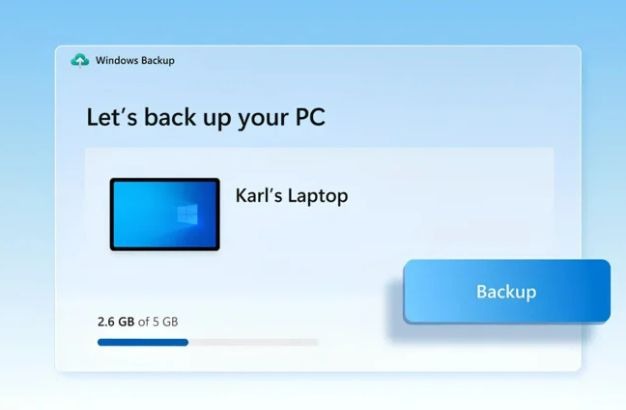
How to Backup Data on Windows: A Guide to Protecting Your Files Home – How to Backup Data on Windows: A Guide to Protecting Your Files At Vision TS, we understand how crucial it is to keep your data safe and secure. Whether you’re an individual or a business in Dubai, losing valuable files or software data can be devastating. That’s why regular data backups are essential to ensure that your files are protected. As a leading IT service provider in Dubai, we offer comprehensive IT solutions, including data backup services tailored to meet the needs of businesses in areas like Business Bay, JLT, Downtown Dubai, and Dubai Marina. Here’s a step-by-step guide to help you back up your data on a Windows computer using various methods: 1. Using an External Storage Device This is one of the simplest and most reliable ways to back up your data. Step 1: Connect your external hard drive or USB to your computer. Step 2: Open File Explorer and locate the files/folders you want to back up. Step 3: Copy and paste or drag the selected files to the external drive. 2. Using Windows Backup Tool For those who prefer automated backups, the built-in Windows Backup Tool offers an easy and convenient solution. Step 1: Go to Settings > Update & Security > Backup. Step 2: Click Add a drive and select your external storage device. Step 3: Toggle the Automatically back up my files option to enable automatic backups. Step 4: Click More options to customize backup settings, such as frequency and which folders to include. 3. Using File History File History allows you to create backups of important files in real-time, so you don’t have to worry about manually backing up your files all the time. Step 1: Connect an external drive to your computer. Step 2: Go to Settings > Update & Security > Backup > More options. Step 3: Click Back up now to start the backup process. 4. Using Cloud Storage   Cloud storage is a great option for backing up files offsite, making them easily accessible from anywhere. Step 1: Sign up for a cloud service such as OneDrive, Google Drive, or Dropbox. Step 2: Install the cloud service app on your computer. Step 3: Drag and drop your files into the cloud folder, or use the app’s backup feature to automatically sync your files. Tips for Effective Backups To ensure your backups are effective and reliable, follow these key tips: 1. Follow the 3-2-1 Rule The 3-2-1 rule is a best practice for data backup: Keep 3 copies of your data (original + two backups). Store backups on 2 different types of media (e.g., external hard drive + cloud storage). Keep 1 copy offsite, such as in the cloud, to protect against physical damage. 2. Schedule Regular Backups Automating backups ensures that your data is backed up consistently and regularly, so you don’t have to worry about forgetting. 3. Verify Backups Periodically check your backup files to ensure they are working correctly and can be restored if necessary. 4. Encrypt Sensitive Data Use encryption tools to protect sensitive information, especially when using cloud storage or external drives. 5. Label Backups Clearly label your backup drives with the date and contents, so you know exactly what is stored and can access it easily when needed. At Vision TS, we specialize in providing reliable IT services, including data backup solutions, to businesses across Business Bay, JLT, Downtown Dubai, Dubai Marina, and beyond. Whether you need assistance with setting up automated backups, selecting the right backup solution, or ensuring your data security, we are here to help. Contact Vision TS today for professional and tailored data backup services to protect your valuable data. With our IT solutions, you can rest assured that your important files and software data are always safe and secure. Don’t wait for disaster to strike—back up your data today 📍 Available in Business Bay, Downtown, Dubai Freezone, and beyond📞 Contact us today for a free consultation! We guarantee that you will never lose any of your important files or software data. Let us handle your IT needs so you can focus on growing your business.

Blog

Managed IT Services in Dubai: A Game-Changer for Growing Businesses

Managed IT Services in Dubai: A Game-Changer for Growing Businesses Home – Managed IT Services in Dubai: A Game-Changer for Growing Businesses In today’s fast-paced digital landscape, businesses in Dubai must stay ahead of technological advancements to remain competitive. Managed IT services provide a cost-effective, proactive solution to maintaining your IT infrastructure—ensuring security, performance, and scalability. At Vision TS, we provide comprehensive IT services in all areas of Dubai, offering tailored support that empowers businesses of every size to thrive in the modern tech-driven environment. 1. Proactive IT Support & Reduced Downtime Unlike traditional “break-fix” IT models, Vision TS offers 24/7 monitoring and preventative maintenance, identifying and resolving issues before they disrupt your operations. In Dubai’s high-stakes market, even minor downtime can impact your bottom line. With Vision TS, you benefit from: Real-time system monitoring Rapid issue resolution Scheduled maintenance and performance updates 2. Advanced Cybersecurity & Regulatory Compliance Cyber threats are evolving—and Dubai businesses are not immune. Our managed IT services include multi-layered security to keep your data safe and your business compliant with local laws like DIFC and ADGM regulations. Vision TS provides: Firewall and intrusion detection systems Regular security audits and vulnerability assessments Data protection strategy aligned with UAE compliance standards 3. Cost Efficiency & Predictable IT Budgeting Hiring and maintaining an in-house IT team in Dubai can be expensive. With Vision TS, you get access to top-tier IT experts for a fixed monthly cost, eliminating surprises and reducing operational overhead. We help businesses save with: Transparent monthly pricing No hidden fees or emergency charges Optimized hardware/software solutions to reduce IT spend 4. Scalable Solutions for Business Growth Whether you’re a startup or an expanding enterprise, your IT needs will grow with you. Vision TS offers flexible, scalable IT services to support your evolving goals. Our services include: Cloud infrastructure and hybrid IT environments Seamless software migrations and upgrades Remote and hybrid workforce support 5. Stay Focused on What Matters Most Free your internal team from IT distractions. Let Vision TS manage your technology while you focus on innovation, operations, and customer satisfaction. We take care of: Complete network management Automated data backup and disaster recovery IT strategy, consulting, and ongoing support Managed IT services are no longer a luxury—they’re a necessity for businesses operating in Dubai’s competitive environment. Partner with Vision TS, and gain the tools, expertise, and support to keep your systems secure, efficient, and scalable. Ready to Optimize Your IT Operations? Contact Vision TS today for a free, no-obligation IT consultation tailored to your business needs. 📍 Available in Business Bay, Downtown, Dubai Freezone, and beyond📞 Contact us today for a free consultation! Let us handle your IT needs so you can focus on growing your business.

Scroll to Top